Transactions
The Transactions panel lists every transaction on the river page and opens a flow diagram when you drill into one. Open the panel from the Browse group in the right sidebar.
Browsing transactions
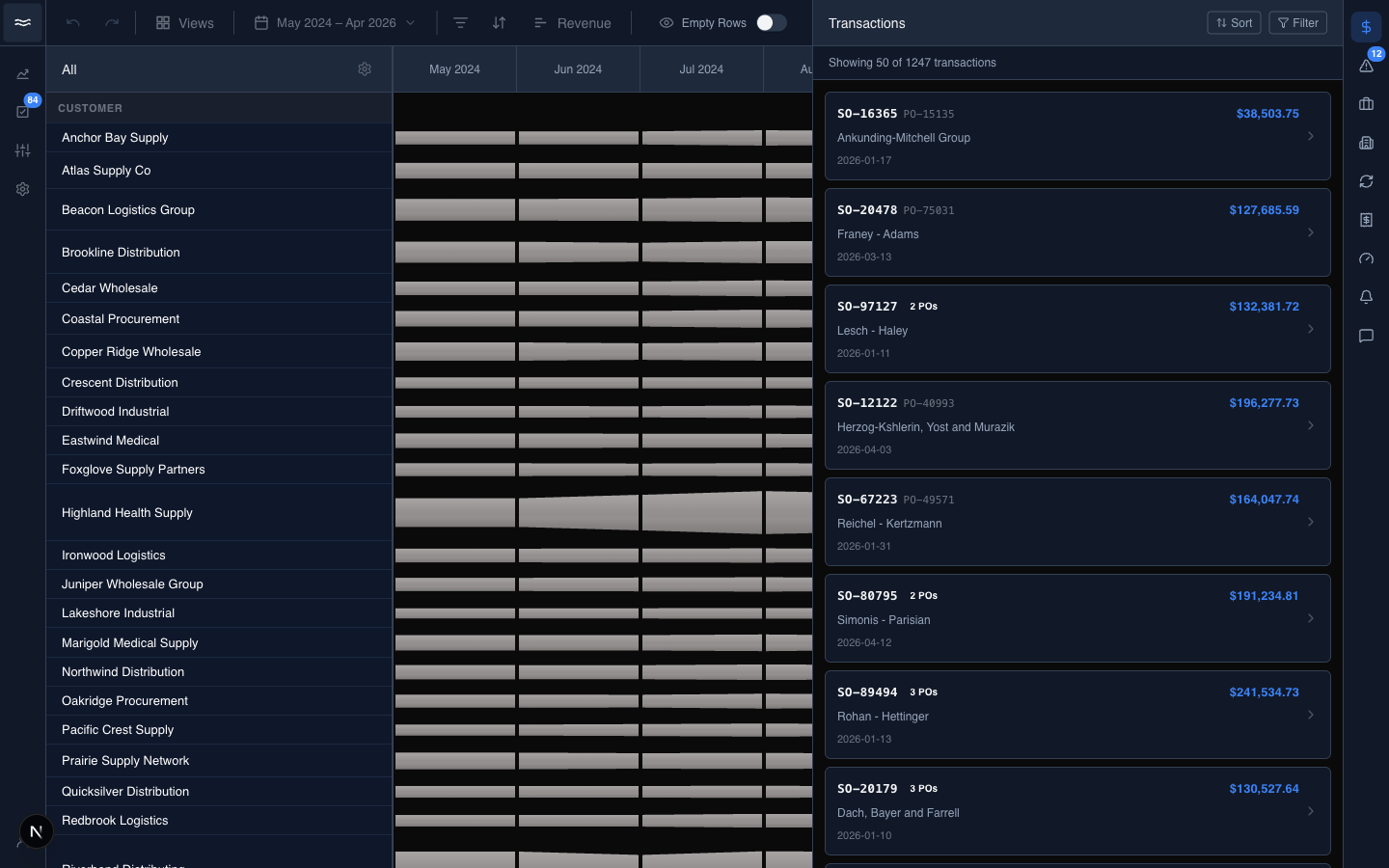
The count bar shows totals (for example, Showing 50 of 1247 transactions). Each row is one Sales Order: the SO number, the linked PO number or numbers (a count badge appears when there is more than one), the customer, the transaction date, and the amount. The colored stripe on the left edge tracks issue status: blue for unseen issues, yellow for issues in progress, green when every issue is resolved, and none when the SO has no issues.
- Search (top of the panel): looks up SO and PO numbers on the server.
- Sort: Most Recent, Oldest, Highest Amount, or Lowest Amount.
- Filter: the dimension picker plus a date range. Most filters run on the server. A few (Product Category, Manufacturer, SKU) apply client-side to the rows already loaded, so their results change as you scroll and more rows load.
Reading transaction detail
Click a row to open the detail view:
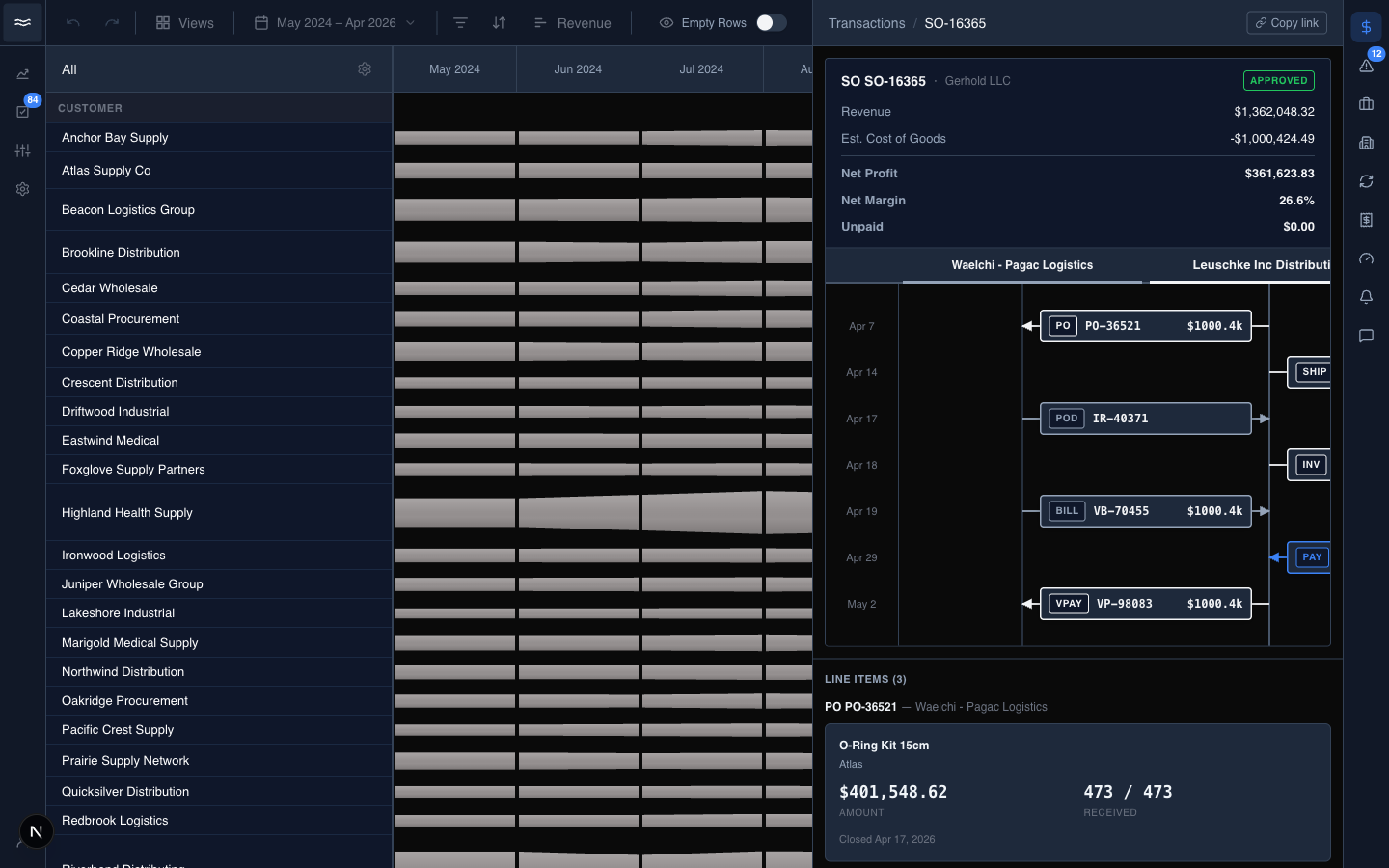
The panel header is a breadcrumb (Transactions / SO-xxxxx) with a copy-link button. The Sales Order card at the top of the flow shows the SO number and customer, approval and credit-hold chips, and the money: Revenue, Est. Cost of Goods, Net Profit, Net Margin, and any Unpaid balance.
Below the card, the flow diagram is a chronological timeline of every document tied to the transaction, laid out in three lanes: vendors on the left (one sub-rail per vendor), you in the middle, and the customer on the right. Each row is one event, drawn as an arrow between the parties involved:
- PO / POD / BILL / VPAY: purchase order, proof of delivery, vendor bill, and payment to vendor.
- SHIP / INV / PAY: shipment to customer, invoice, and payment received.
- RA / RETURN / CM: customer-side return authorization, returned goods, and credit memo.
- VRA / VRTN / VCR: the vendor-side equivalents.
Line weight encodes what moved: thin for documents, heavy for money, doubled for goods, and dashed for exceptions. Unpaid bills and open exceptions carry a warning dot with the amount.
Click an event to highlight the rest of its chain. Every related document lights up, and unrelated documents fade. Click the event again to clear the highlight.
Line items, cases, and tasks
Below the flow, Line Items groups the SKUs by child PO, with the vendor's name on each group. Each line shows the quantity received vs ordered, the amount, a shortage or overage badge when the two quantities disagree, and how much has been fulfilled and billed downstream.
Support cases tied to the order are listed underneath. Click one to open its case detail. A Tasks section lets you attach follow-up work directly to the transaction. Related documents sit at the bottom.