Issues
Issues are anomalies the rules engine flagged on the data, plus general issues operators created by hand. Triage them in the Issues panel. Work them one at a time in the detail view.
Triaging the list
Open the Issues panel from the right sidebar:
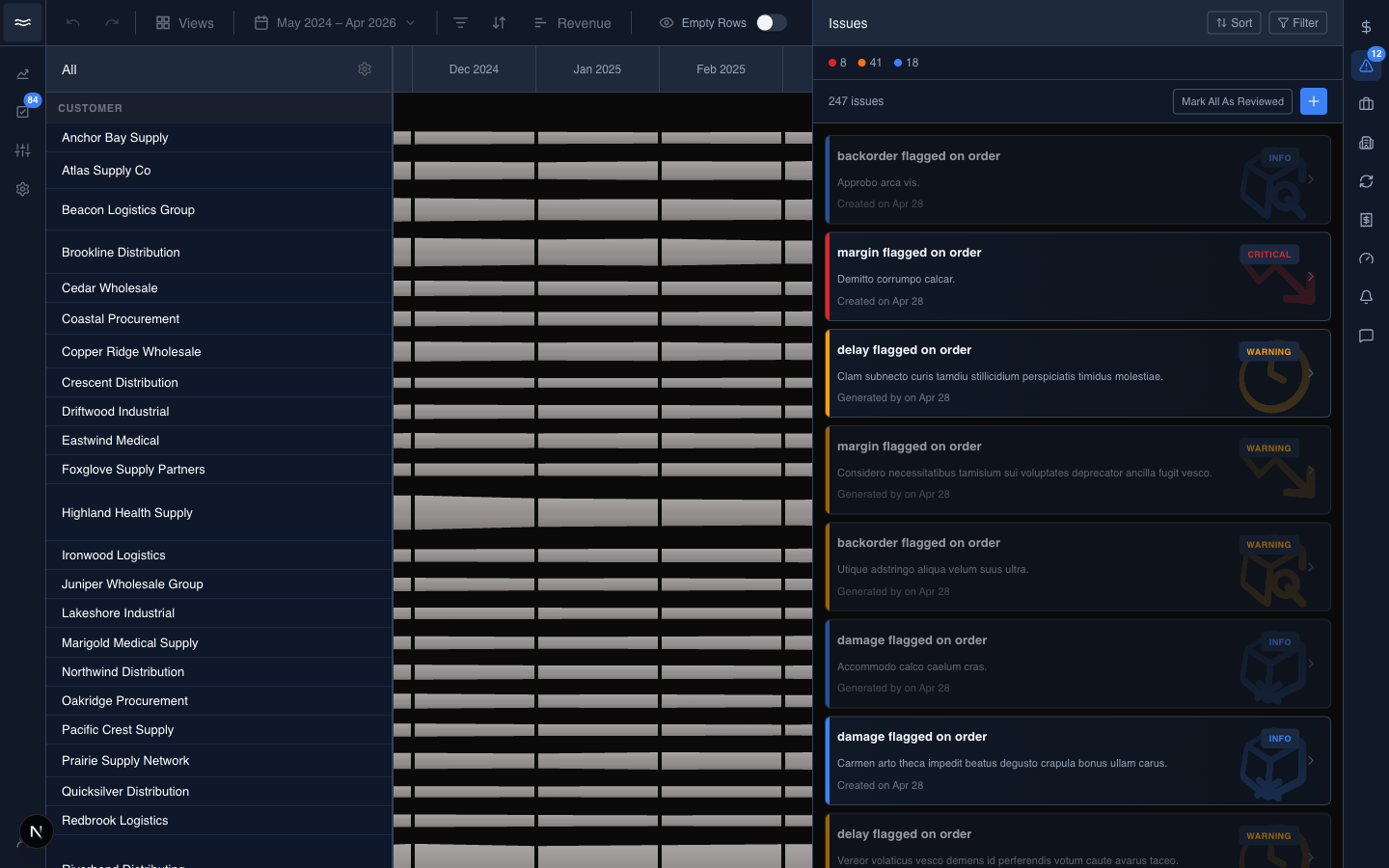
The header shows the total issue count. The severity counts above the list act as filter chips: click one to narrow the list to a single severity. Sort and Filter are at the top right. Mark All As Reviewed clears the unseen badge. The + button opens the create modal.
Each card shows a one-line title, a short description, the source (a creation date for hand-created issues, "Generated by ..." for rule-fired issues), and a severity tag.
Working an issue
Click a card to open the detail view:
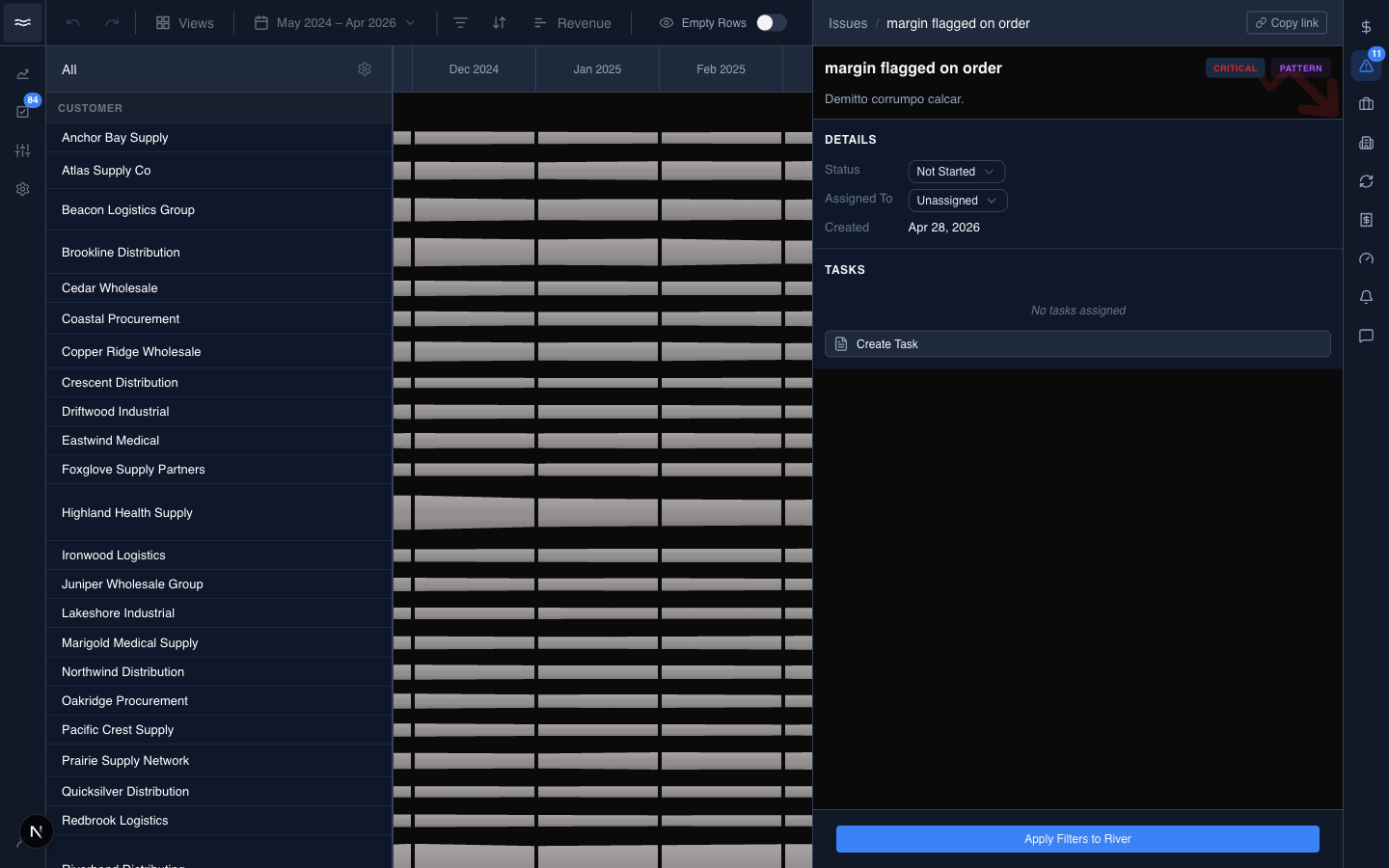
- Status: Not Started, Addressing, or Solved. To dismiss an issue, use the right-click menu on the card.
- Assigned To: pick a teammate or leave the issue Unassigned.
- Tasks: issues can carry follow-up tasks. Create one inline.
- Apply Filters to River: collapse the river to only the entities this issue covers.
- Copy link: a shareable URL that opens directly to this issue.
Opening an unseen issue marks it reviewed automatically. Creating a task from an issue also marks the issue reviewed.
Creating an issue
Click the + in the panel header to open the create modal:
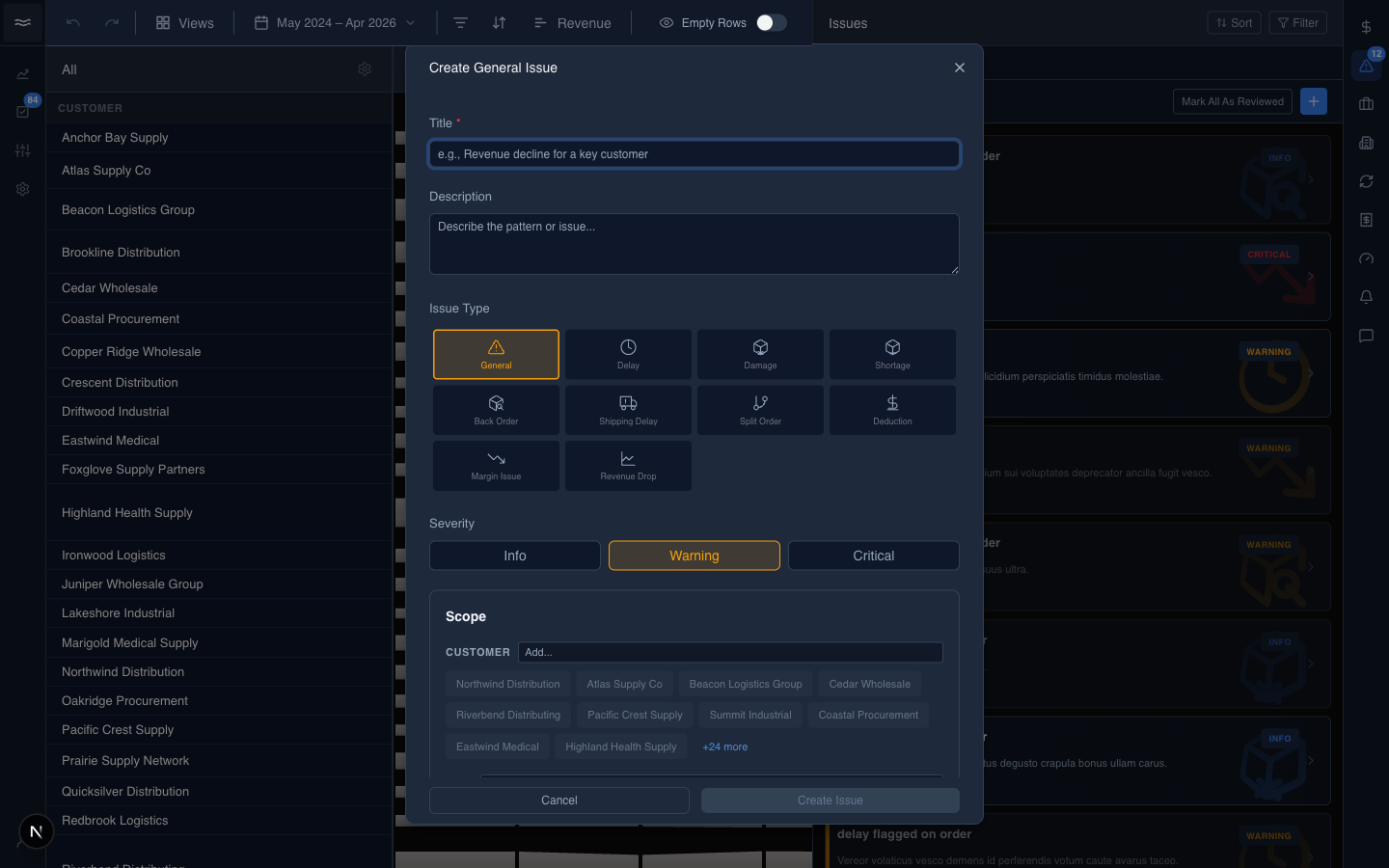
- Title and Description: what the issue is and why it matters.
- Icon: a cosmetic marker for the river badge: General, Time-sensitive, Product, Shipping, Financial, Trend, or Inventory. Icons are not categories; there is no type taxonomy behind them.
- Severity: Critical, Warning, or Info.
- Scope: the accounts (or other dimension values) the issue applies to, with an optional month range.
Hand-created issues appear in the same list as rule-fired issues. The source line is the only visible difference.
Issues on the river
The markers on the canvas are controlled from the toolbar's Icons popover. Severity, status, rule, and Unseen Only chips place matching issue pills on the bands (see Issue indicators). The sidebar panel's own filter affects only the panel list.
Jumping to linked entities
The footer of the detail view has the Apply Filters to River button. Use it when an issue references multiple accounts or SKUs and you want the river collapsed to only those bands. The Tasks list opens each linked task. If a rule fired the issue, the rule name links to the rule's definition.