Rules
Rules turn data conditions into issues. Define what to watch for once, and the rule engine fires an issue every time something matches, anchored to the correct band-month so it lands in the river automatically.
The rules list
Open Rules from the main nav:
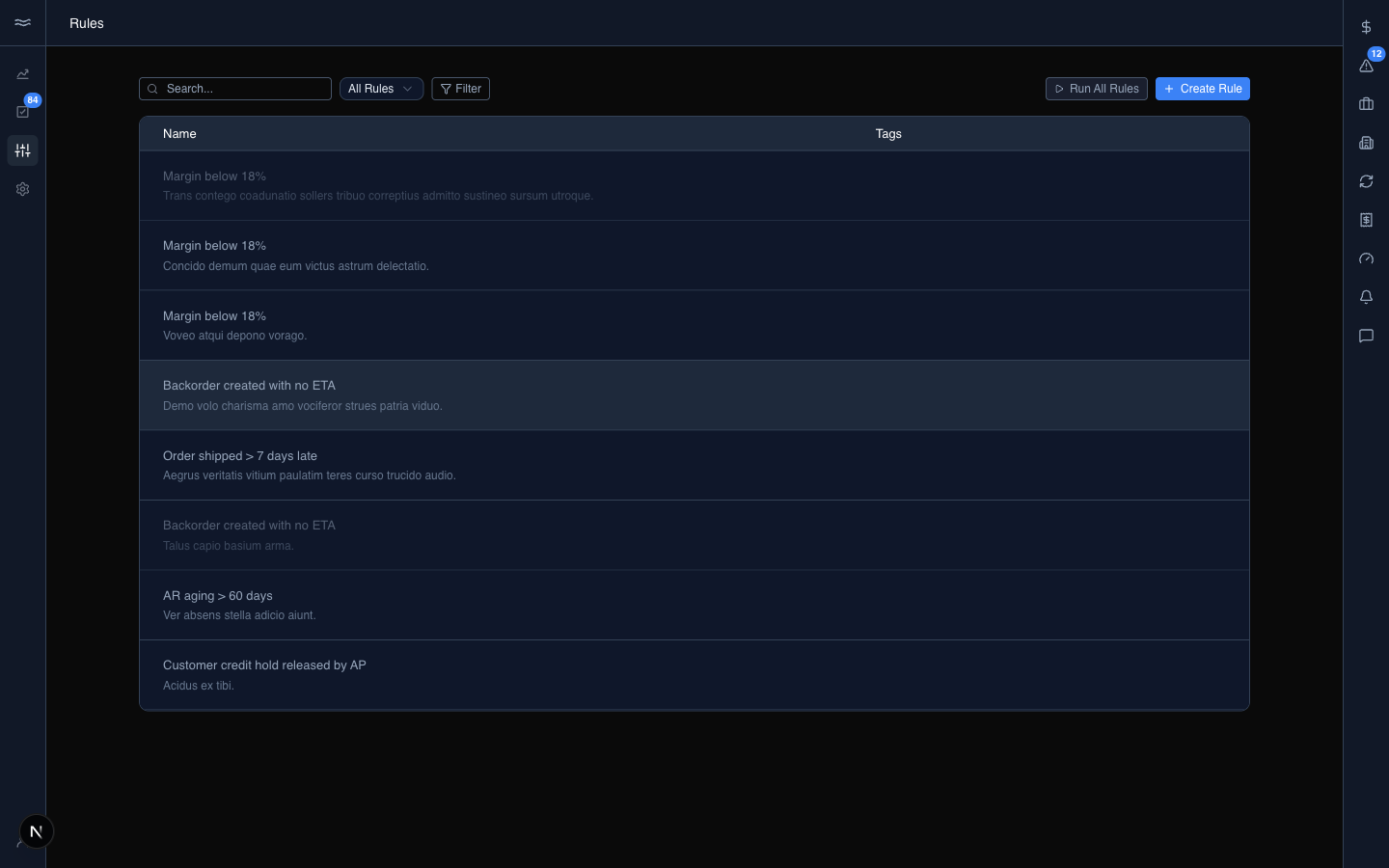
The list has a search box that matches name and description, and a status select (All Rules, Active, Inactive). Each row is one rule with its name, description, and last evaluation time. Inactive rules render dimmer.
Admins also see:
- Run All Rules: opens a small panel to pick the month range (or All time) before running. A 5-minute cooldown is enforced on the server.
- A per-row Run button that evaluates only that rule.
Activate or pause a rule in the builder footer. The change is local until you click Save.
Building a rule
Click a rule (or + Create Rule) to open the builder:
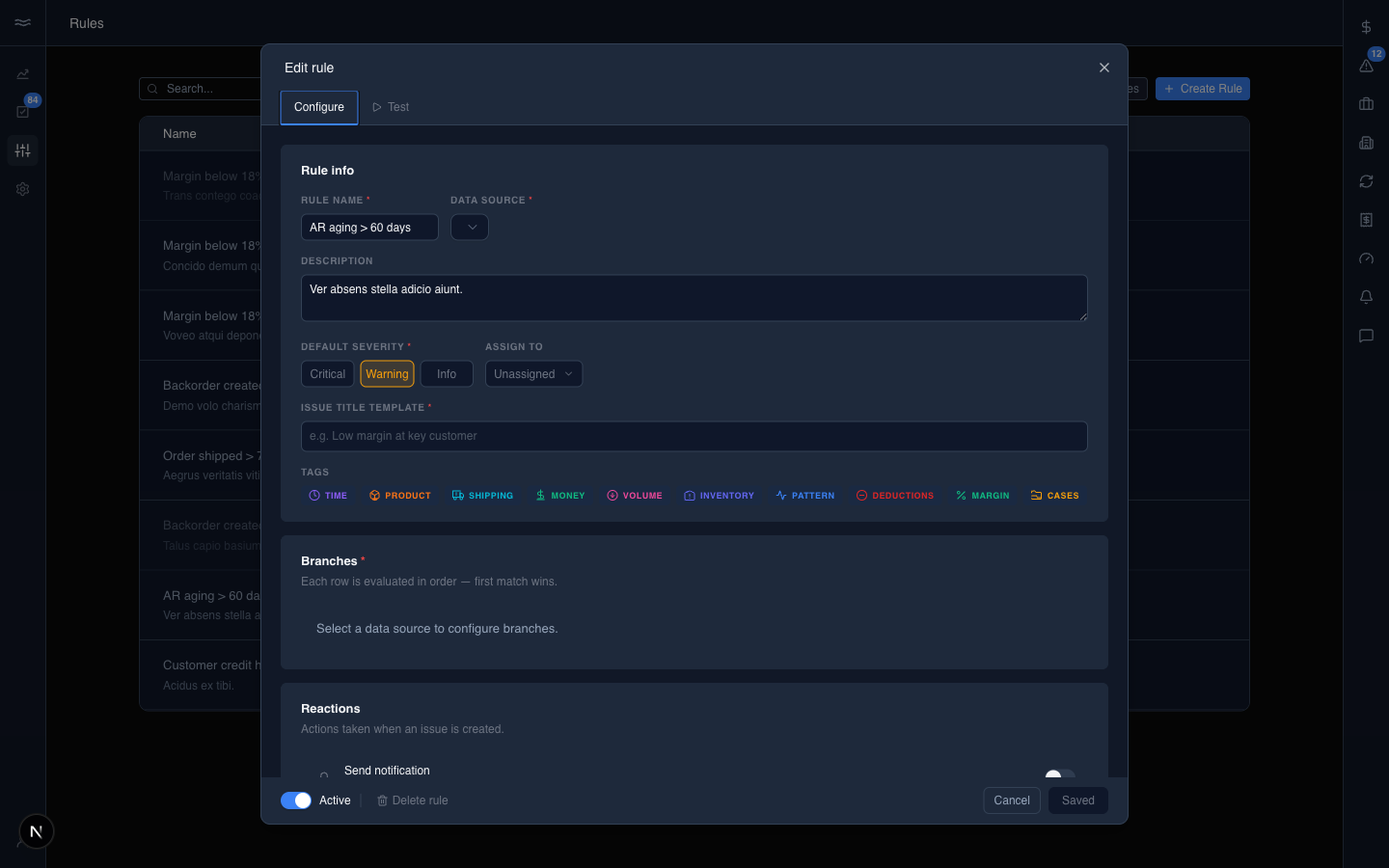
Two tabs run across the top: Configure and Test.
Rule info
- Rule name, Description, and Data source: the metric view the rule reads from. Picking a source unlocks the field set the branches can use. Changing the source on an existing rule deletes the branches without warning, so choose the source before you build branches.
Branches
Each branch is a condition and its outcome. Branches evaluate top-down, first match wins, so order matters. Drag branches to reorder them. A branch with no conditions is a catch-all and shows an amber Catch-all — matches all rows pill.
Actions
Actions run when a branch matches. There are four action types:
- Open issue: title and description templates, severity, assignee, and the river icon. Templates pull row values with
${field}placeholders, for exampleMargin drop at ${customer}. - Create task: create follow-up work with an assignee (role or person), a priority, and a due-in-days value.
- Send notification: message a set of roles or people. Each user's notification settings are respected.
- Write CSV export: append or replace rows in a rule-generated report, downloadable from Reports.
Testing
The Test tab runs the rule against live data without firing any actions. It shows the rows scanned, the matches per branch, and the generated SQL.
The footer has the Active/Paused toggle, Delete rule, Cancel, and Save. The Save label cycles Create rule → Save changes → Saved.
Editing existing rules
Saving structural changes (data source, branches, description, or the issue action's template or severity) on a rule that already has open issues triggers an impact check. If matches exist, you choose one of three options:
- Keep editing: stay in the builder without saving.
- Save as new rule: fork the rule under a new ID. The old rule stays intact.
- Save and delete old issues: overwrite the rule and discard the issues fired by the previous version. There is no undo.
Renaming alone is not structural, so no dialog appears.