Customers
The Customers panel lists accounts on the river page. It is searchable and sortable, and its detail view lists every Sales Order on a single account. Open the panel from the Browse group in the right sidebar.
Browsing customers
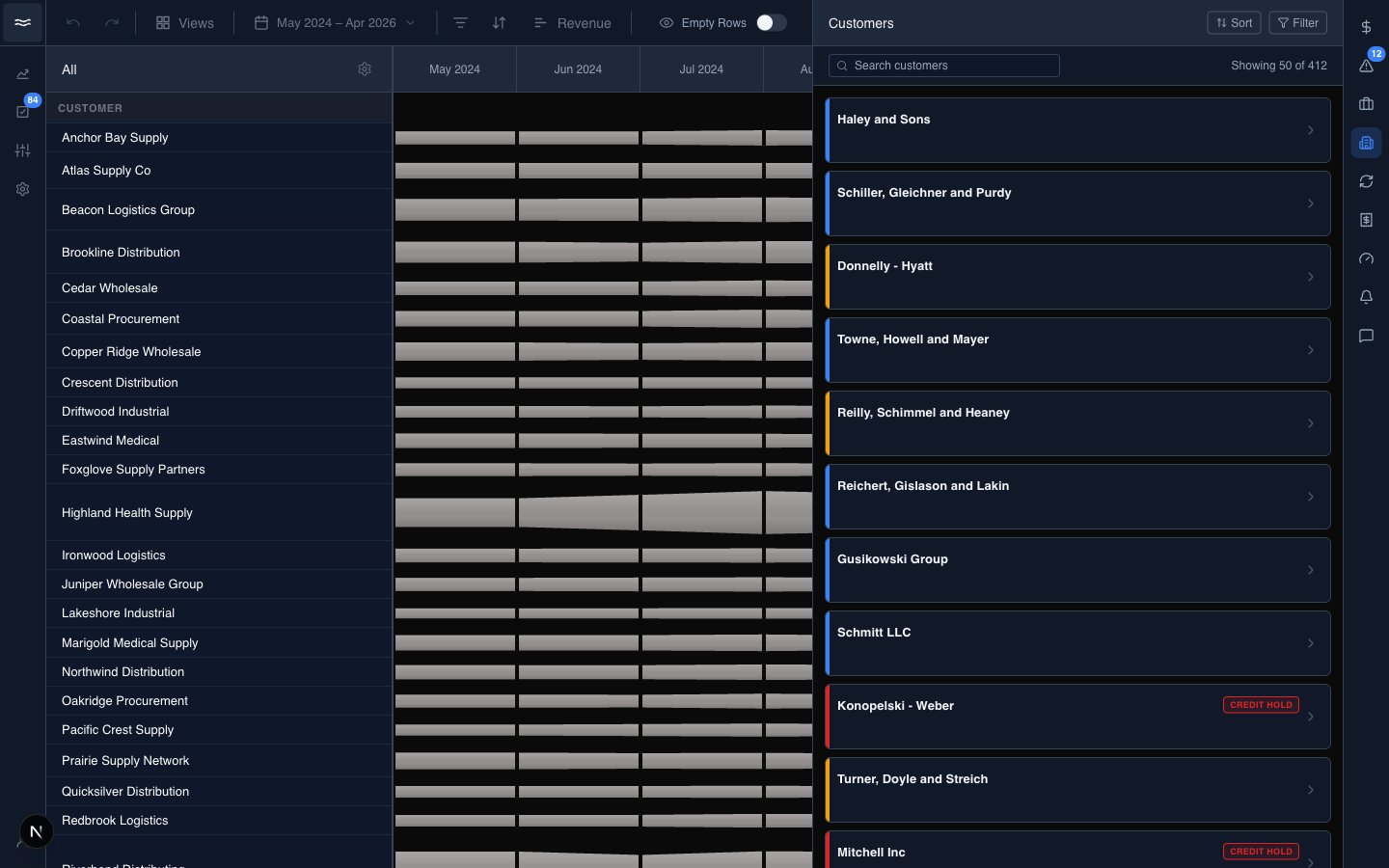
- Search: looks up accounts by name or ID on the server.
- Sort: Balance, Overdue, Oldest overdue, or Name. Sort and the status filter operate only on the rows loaded so far. Keep scrolling to load more rows before you conclude that an account is missing.
- Filter: All Customers, Credit Hold, or Has Overdue Balance.
Each card shows the account name, its parent company when it rolls up to one, and a colored stripe on the left edge:
- Red: the account is on credit hold. A
Credit Holdpill also appears on the card and in the detail view. - Amber: the account has an overdue balance.
- Blue: default, no flags.
The two flags are independent. An account can be on credit hold and overdue at the same time. Balance and overdue amounts appear on the cards only when the Has Overdue Balance filter is active. The age of the oldest overdue invoice turns red after it passes 30 days.
Reading an account
Click a card to open the detail view:
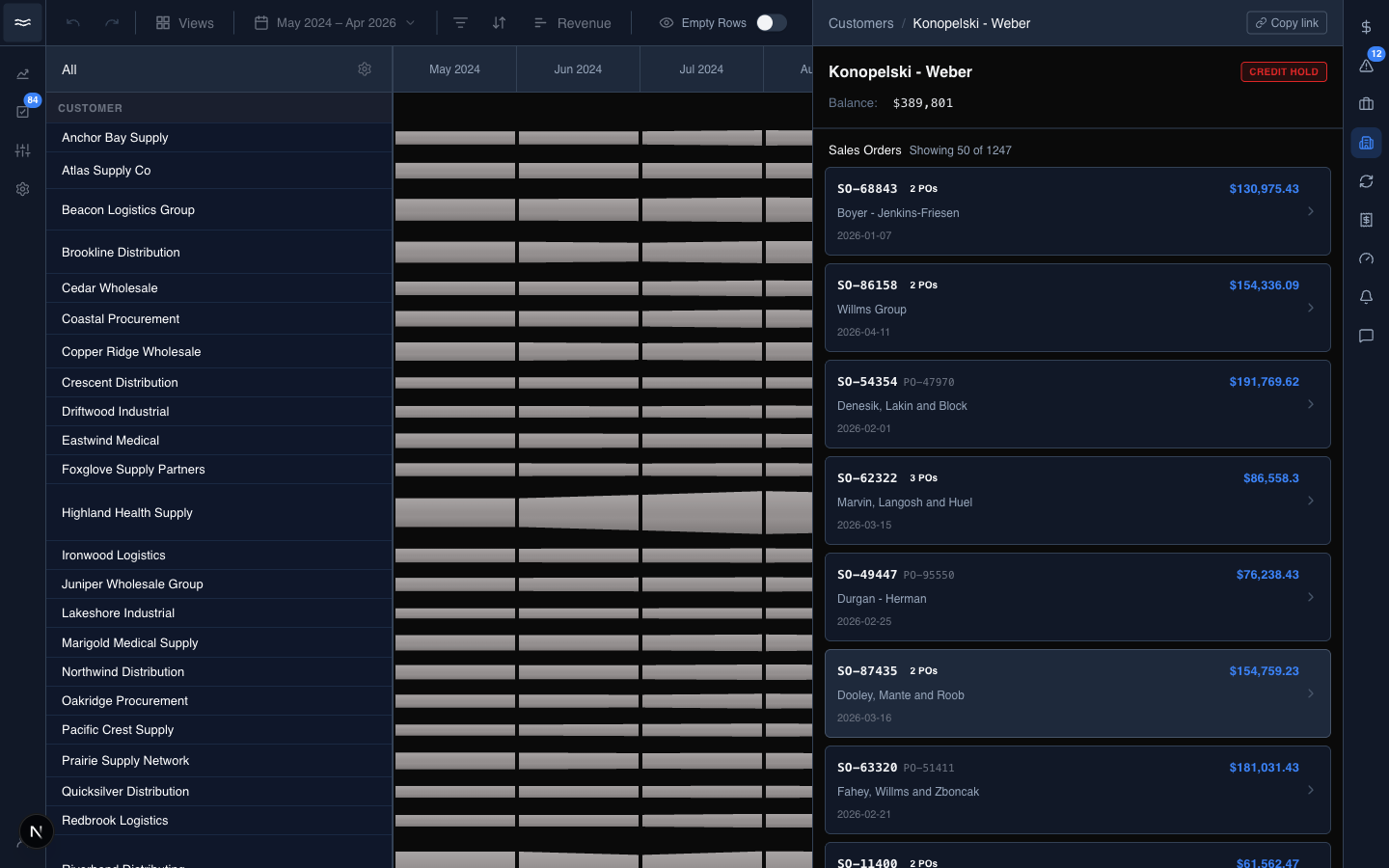
The header is minimal by design: the account name, its parent company, and the Credit Hold pill when applicable. All other information is on the Sales Orders below.
The Sales Orders list shows every SO on the account, using the same cards as the Transactions panel. When the account has overdue invoices, a filter appears to narrow the list to Overdue invoices only. With that filter on, each SO shows a sub-row with its overdue amount and the age of its oldest overdue invoice. Click an SO to open its flow diagram (see Transactions).
Account hierarchy
The parent shown on cards and in the detail view is the account's top-level parent company, the same rollup the river's Distributor grouping uses. The panel shows one parent line; it does not navigate the tree.