Reports
Reports is the shared files hub in the main nav. It collects two kinds of downloadable data: managed reports, which you define and upload files against, and read-only exports, which rules write. It also holds a converter for cleaning up messy source files.
The reports grid
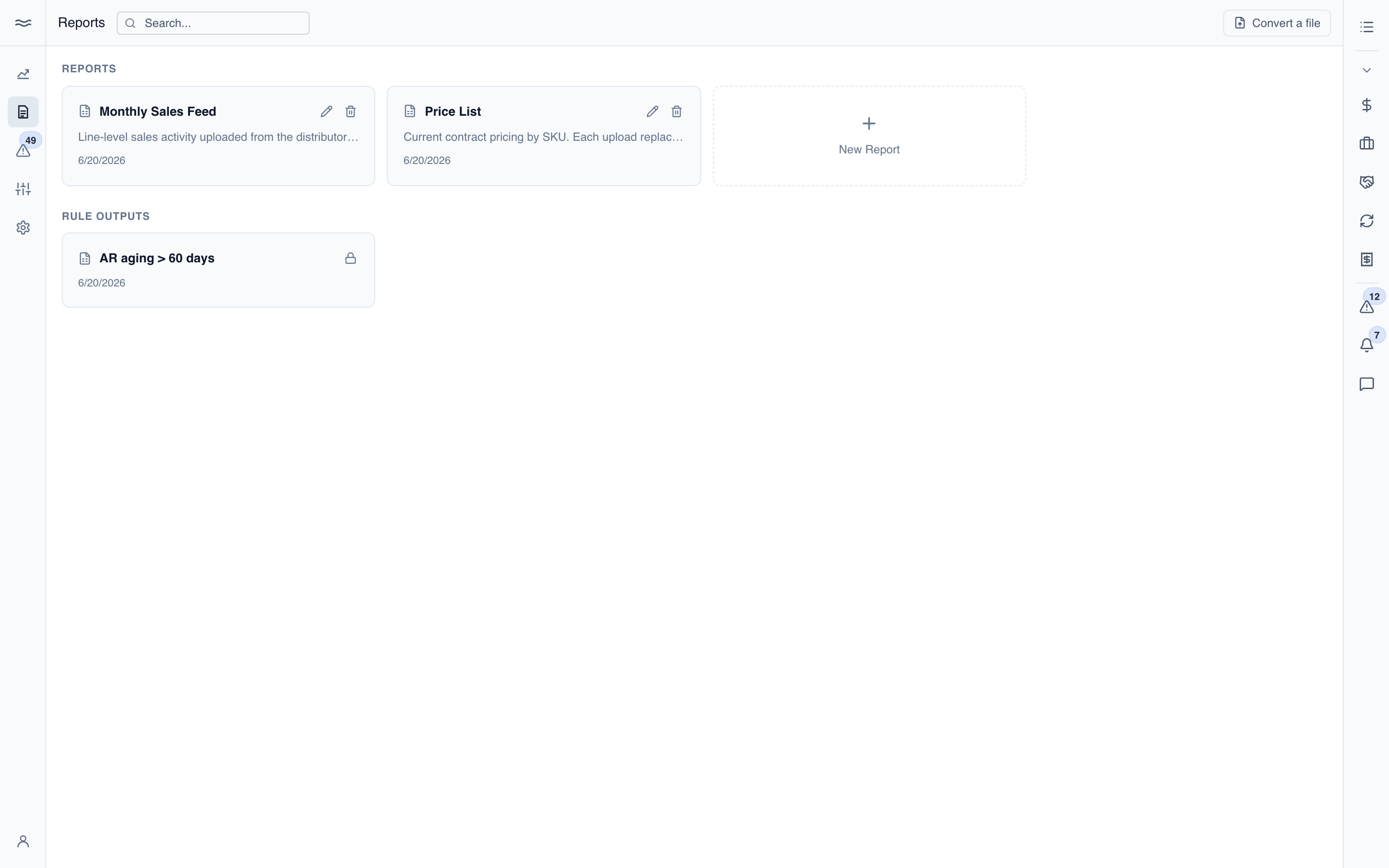
Each card is one report. Managed reports carry edit-schema and delete actions. Rule-generated reports carry a lock and the note Rule-generated — read-only; a rule's Write CSV export action produces them (see Rules). The dashed New Report card creates a managed report. Convert a file at the top right opens the converter.
Managed reports require the reports permission. Rule exports require the rules permission.
Managed reports: schema, uploads, runs
A managed report is a defined table that operators upload files into:
- Schema: the name, description, and column list (name, type, required, and optional require-one-of groups). The schema also sets the load mode: Append stacks each upload; Replace replaces all existing data.
- Upload: the report detail walks you through a CSV or Excel upload, validated against the schema column by column before any data lands.
- Files: every uploaded file is listed with download and delete actions.
- Run: when the report is linked to a processing notebook, a run panel appears with the run history and a Run notebook now button.
Changing a schema that already has uploaded files permanently deletes those files. The editor warns you and asks for explicit confirmation first.
Converting a file
Convert a file turns a raw vendor export (Excel or CSV) into a clean, uniform CSV with normalized headers, ISO dates, and de-typed values:
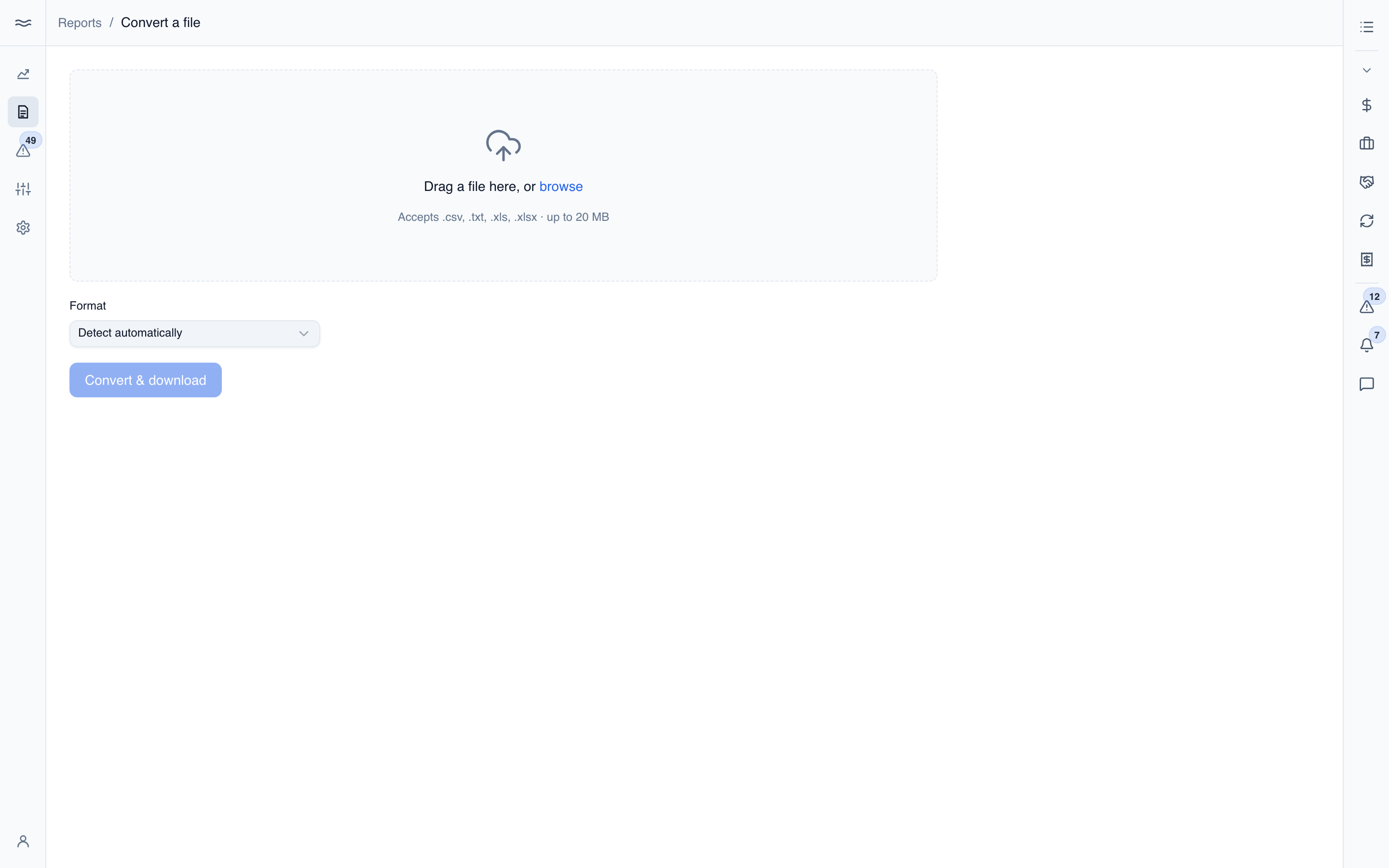
Open the report you want to target, drop the source file, and click Convert & download. The converter detects CSV, tab- or pipe-delimited text, modern Excel workbooks, and legacy .xls workbooks from their contents. It reshapes the data directly into the report's declared columns and downloads the cleaned CSV immediately.
The first unfamiliar layout may ask you to confirm ambiguous columns. That confirmed layout is remembered for later files of the same shape. A converted file already has the report's exact schema, so uploading it again proceeds directly to validation without asking you to remap its columns.